Among the new features of Odoo 20 offline mode takes up just two lines in the official release notes, but for people working in a warehouse, on a building site or at customers' premises it can be worth more than many better-advertised features. It is not, however, a copy of the ERP that runs without internet.
To see where the promise ends and the limits begin, we tried it on a test installation of Odoo 20 Community, with demo data and Chrome, simulating a lost connection. What follows comes from those tests and from reading the code. Results may differ with other modules and customizations.
What Odoo 20 offline mode is
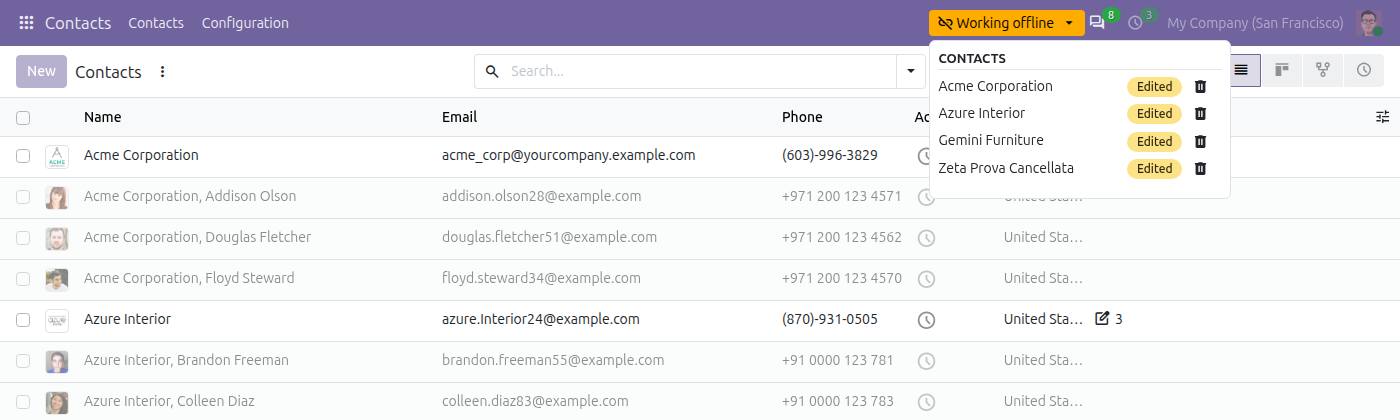
When the connection drops, Odoo notices on its own and shows a "Working offline" notice at the top. You can keep consulting the data already saved in the browser and keep editing it. Changes go into a queue, which is sent to the server when the connection returns.
The feature is part of the base interface module: we saw it active on Community, without Enterprise and without installing anything. In the same test it also worked on a custom model created for the occasion. It does need a secure connection, though: in the code, without HTTPS, the feature turns itself off.
What you can do without a connection
- Consult what has already been opened. Views, records and searches are available only if you have already visited them online from that browser. Rows never opened stay greyed out and will not open.
- Edit records. Saved changes go into the queue, and the menu at the top lists every record waiting.
- Create new records. It worked in our test, after the creation form had been opened online at least once. Before that, the "New" button was disabled.
- Close and reopen the browser. The queue survived both a page reload and closing the browser, and it was sent at the first login with a connection.
What stays blocked
Offline you can enter data, but processes do not move forward. On a warehouse transfer "Validate" and "Reserve" were disabled, and on an invoice so were "Send", "Pay" and "Reset to Draft". Sending messages, notes and activities in the chatter is switched off too.
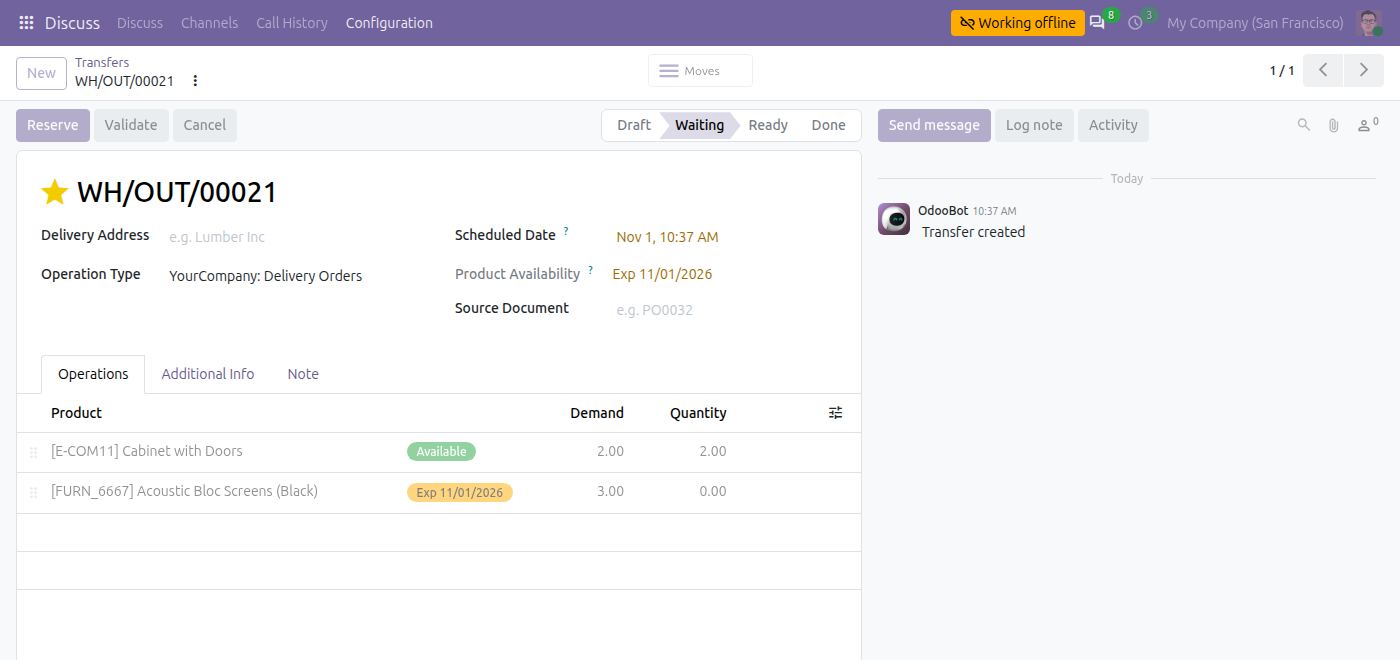
Not every document opens. Transfers, products and invoices already visited opened normally. A sales quotation did not: on click the list stayed where it was, because the form asked the server for other data it had not saved. So the behavior depends on how each screen is built, and every company should test its own.
Three behaviors to know before using it
1. In a conflict, the offline change wins
We changed a phone number offline and, in the meantime, the same field on the server. When the connection returned, the server value was overwritten, with no warning at all. If instead a colleague had changed a different field on the same record, both changes were kept. This matters for shared data such as stock or prices: whoever reconnects last can erase someone else's work without anyone noticing.
2. The queue follows the browser, not the user
This is the result that surprised us most. We made an offline change as one user, then logged out and back in as another user on the same browser. The queue was not emptied: the change was sent with the second user, and Odoo attributed it to them. We repeated this twice with the same outcome. On a shared PC or tablet, as is often the case in a warehouse, the record of who did what can therefore be wrong.
The queue also lives only in that browser. When we emptied it to simulate clearing browsing data, the change was lost and nothing reached the server. And in the browser, pending changes are stored in clear text, including the values entered: we read the queue directly and its content was readable. This needs to be kept in mind on a shared or unprotected device.
3. Errors have to be handled by hand
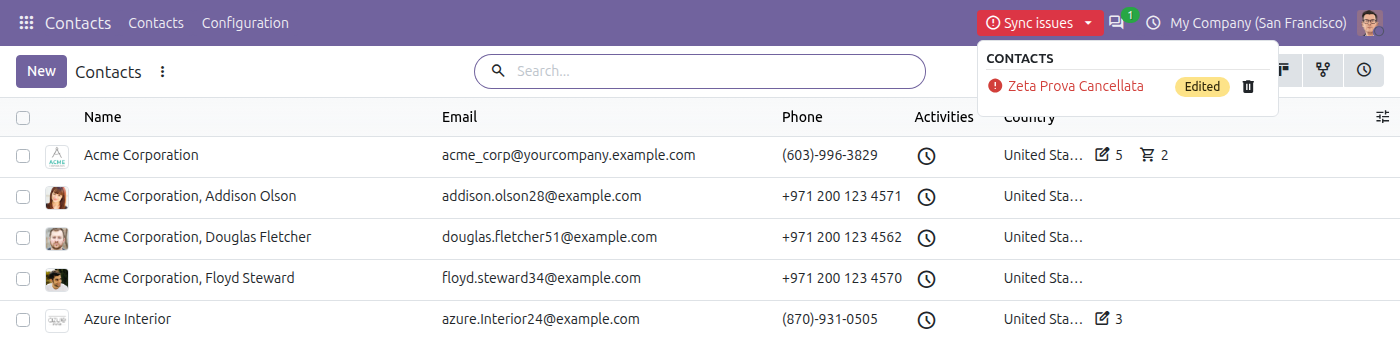
If a change cannot be applied, for example because the record has been deleted in the meantime, "Sync issues" appears at the top and the entry stays red in the list. According to the code it is not retried automatically: someone has to open it and decide what to do. The other changes in the queue are still sent.
How to use Odoo offline mode in your company
- Open what you will need beforehand. Anyone heading to an area with no signal should visit online the screens and records they will use.
- One user per browser. On shared devices, use separate profiles and check that the queue is empty before logging out.
- Clear rules on shared data. Decide which data can be changed offline and who checks synchronization errors.
- Protect the device. Screen lock and disk encryption matter, because data and changes stay in the browser.
- Test your own flows. Custom modules should be checked screen by screen, starting from the ones used most.
Is offline mode a reason to upgrade to Odoo 20?
On its own, rarely. It handles a temporary outage and field data entry well, but it does not replace a process designed for working disconnected. Companies with departments on unstable connections should still include it in their assessment, along with the technical impact of the migration we described in ourOdoo 20 overview.
If you want to understand whether and how it can help your departments, let's talk.
Odoo 20 offline: what really works without a connection and what the limits are